• Documentation
    • About ​ValidMind
    • Get Started
    • Guides
    • Support
    • Releases

    • ValidMind Library
    • Python API
    • Public REST API

    • Training Courses
  • Log In
  1. Add broadcast messaging feature to workflows
  • All releases

  • Current releases
  • Feature highlights
  • ValidMind Platform releases
  • ValidMind Library releases
  • Documentation updates

  • Breaking changes and deprecations

  • Older releases
  • April 24, 2025
  • March 7, 2025
  • January 31, 2025
  • 2024 Releases
    • December 24, 2024
    • December 6, 2024
    • October 22, 2024
    • September 25, 2024
    • September 9, 2024
    • August 13, 2024
    • July 22, 2024
    • June 10, 2024
    • May 22, 2024
    • March 27, 2024
    • February 14, 2024
    • January 26, 2024
    • January 18, 2024
  • 2023 Releases
    • December 13, 2023
    • November 9, 2023
    • October 25, 2023
    • September 27, 2023
    • August 15, 2023
    • July 24, 2023
    • June 22, 2023
    • May 30, 2023

Add broadcast messaging feature to workflows

frontend
25.07
enhancement
Published

June 27, 2025

You can now enhance your workflows with a new broadcast messaging feature. This update lets you add broadcast steps that send messages with dynamic variable substitution. Key features include:

  • Choose variables from available broadcast options.
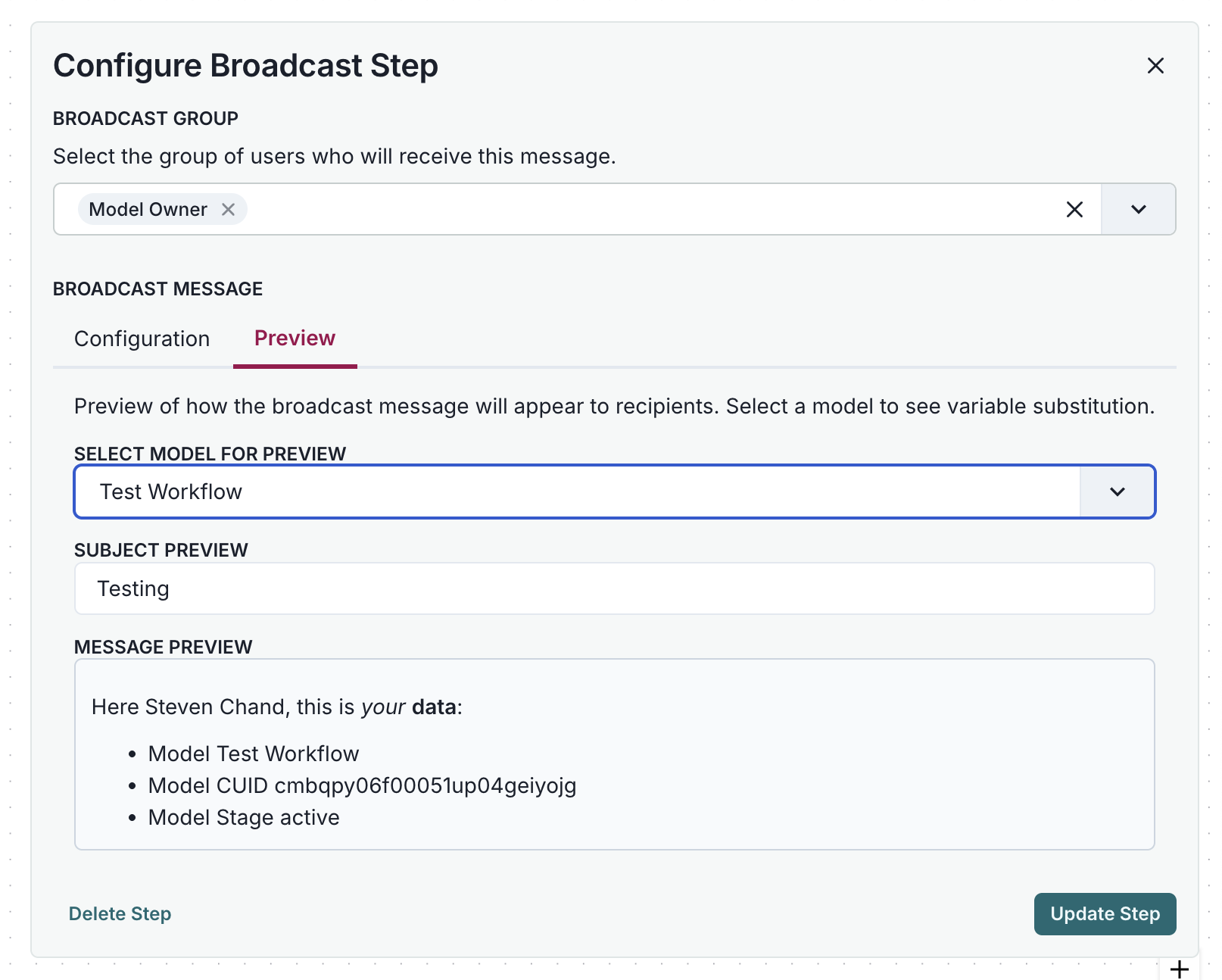
  • See a live preview of message content with resolved variables.
  • Use rich text editing to craft broadcast messages.
  • Integrate seamlessly with the existing workflow builder.
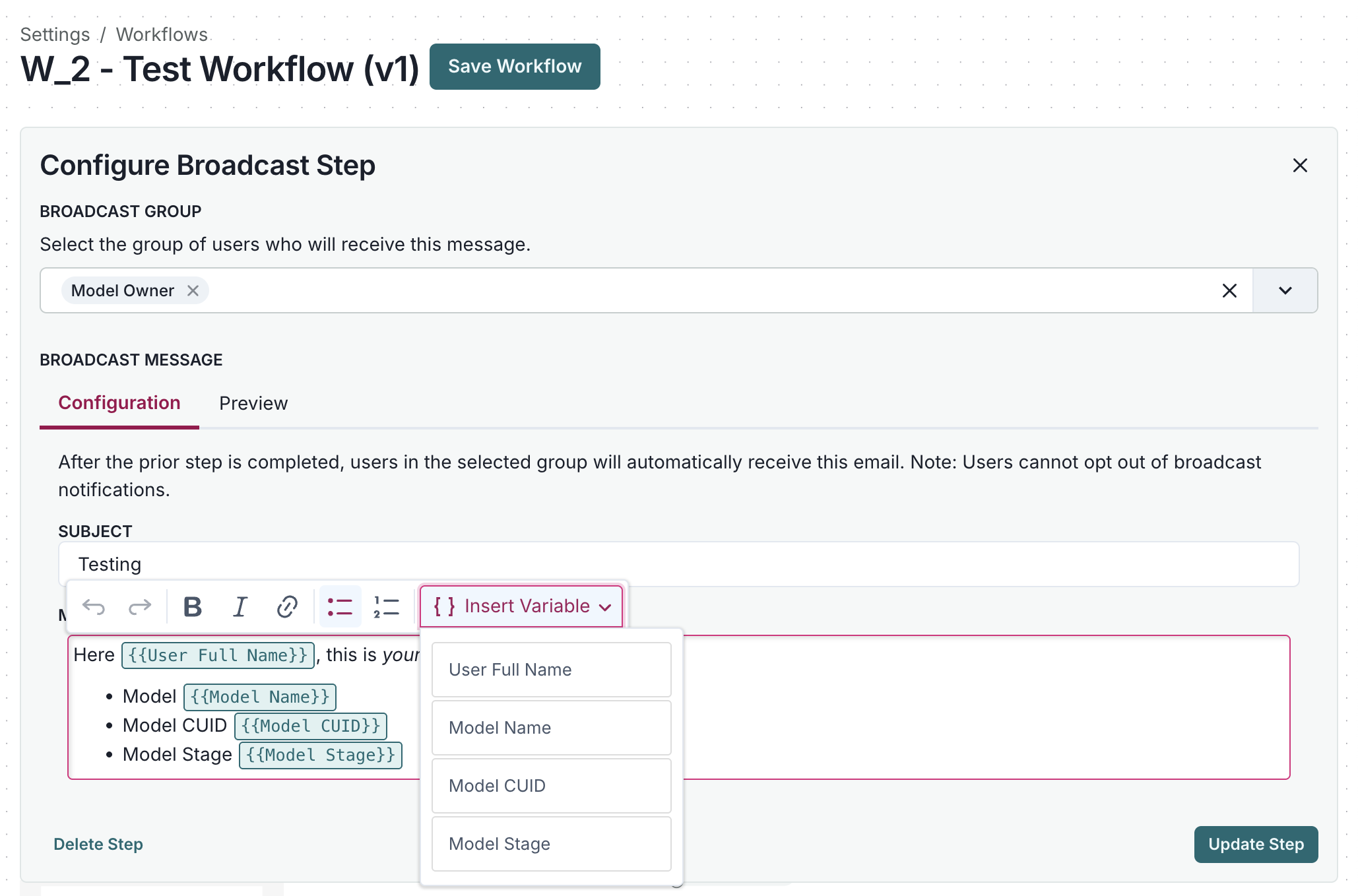
A workflow configuration interface titled W_2 - Test Workflow (v1) with a green Save Workflow button at the top. The section Configure Broadcast Step includes a dropdown menu labeled Broadcast Group with the option Model Owner selected. Below, there are two tabs labeled Configuration and Preview, with Configuration currently active. The Broadcast Message section contains a text field for the subject labeled Subject with the text Testing. Below, a text area displays a template with variables, and an Insert Variable dropdown menu is open, showing options like User Full Name, Model Name, Model CUID, and Model Stage. A green Update Step button is located in the bottom right corner.

A user interface for configuring a broadcast step is displayed, featuring two main tabs: Configuration and Preview, with Preview currently selected. The interface includes a dropdown menu labeled Select Model for Preview, showing the option Test Workflow. Below, a text field labeled Subject Preview contains the text Testing. A message preview section displays a message addressed to Steven Chand, listing Model Test Workflow, Model CUID cmbapyo06f00051up04ajeyojg, and Model Stage active. At the bottom, there are two buttons: Delete Step on the left and Update Step on the right.

  • ValidMind Logo
    ©
    Copyright 2026 ValidMind Inc.
    All Rights Reserved.
    Cookie preferences
    Legal
  • Get started
    • Model development
    • Model validation
    • Setup & admin
  • Guides
    • Access
    • Configuration
    • Model inventory
    • Model documentation
    • Model validation
    • Workflows
    • Reporting
    • Monitoring
    • Attestation
  • Library
    • For developers
    • For validators
    • Code samples
    • Python API
    • Public REST API
  • Training
    • Learning paths
    • Courses
    • Videos
  • Support
    • Troubleshooting
    • FAQ
    • Get help
  • Community
    • GitHub
    • LinkedIn
    • Events
    • Blog
  • Edit this page
  • Report an issue