Manage inventory fields
Manage the fields that appear on records in your inventory across your organization’s record types. Choose from an array of field types with different properties and use cases.
Prerequisites
Inventory field types
- Aggregation
- Automatically compute a read-only value from downstream artifacts2 linked to this record.
Select the type of Artifacts to aggregate from.3
Select an Aggregation Function:4
- COUNT - Count matching entities — Count the number of matching artifacts for that type.
- MIN - Earliest/minimum value — Return the least recent value from a selected Date type artifact field for that type.
- MAX - Latest/maximum value — Return the most recent value from a selected Date type artifact field for that type.
(Optional) Click Add Rule under Filters to narrow which artifacts are included in the aggregation.
4 For MIN or MAX, also select the Date type Artifact Field to aggregate on.
Aggregation values are stored on each record and refreshed in the background. You can filter and sort the inventory by them: a COUNT offers number operators, and a MIN or MAX offers date operators.5
- Attachments
- Upload supporting files for your record.6 The default maximum upload size is 100 MB per file. The limit shown in ValidMind may differ depending on your deployment configuration.
- Calculation
-
Define a
formula(params)function that reads field values from theparamsdictionary and returns a read-only value. Formulas are written in Starlark7, a small, sandboxed scripting language with a Python-style syntax and a set of built-in helper functions for working with dates, numbers, and lists.
7 Starlark
- Select a Result Type for the value your formula returns: Text, Number, Date, or Boolean.8
- Select from the drop-down of Available Record Fields to allow your formula access to the field’s values.9
- Replace the demonstration formula with your own in the code box provided.10
- Click Test Calculation to open the testing area.
- Enter sample values in the testing area then click Test Calculation to validate your formula. The result shows the type of value your formula returned and warns you if it does not match the selected result type.
8 The result type decides which filter operators and sort order the field offers, and how its values are validated. A formula that returns a value of another type is recorded as a type mismatch on that record.
9 Fields are grouped by field type.
10 Reference fields with dictionary-style access — params["fieldKey"] — and use the available helpers for date and number work.
Calculated values are stored on each record and refreshed in the background. You can filter and sort the inventory by them using the operators for the field’s result type.11
In addition to custom field keys you add from the available fields drop-down, formulas can read built-in keys on the params dictionary:
| Param | Applies to | Availability | Description |
|---|---|---|---|
params["<fieldKey>"] |
Inventory records & artifacts | Add the field from the available fields drop-down | Current value of another custom field on the same record or artifact. |
params["model_stage"] |
Inventory records | Add Model Stage from the available fields drop-down | Current model stage name as a string (for example, "Production"). Returns an empty string when no stage is assigned. Compare directly: params["model_stage"] == "Production". |
params["stakeholders"] |
Inventory records | Add a stakeholder role from the available fields drop-down (for example, Stakeholders — Owners) | Assigned users by stakeholder role. Default role keys are owners, developers, and validators. Custom stakeholder types use custom_stakeholder_<cuid>. Each entry includes name, email, and title. |
params["integrations"] |
Inventory records & artifacts | Reference params["integrations"] in the formula source |
Linked external integration data keyed by service (for example, params["integrations"]["mlflow"]). Empty when integrations are not configured or not referenced. |
Reference these helpers in your formulas — they cover the date, number, and list operations the engine does not expose directly:
| Helper | Returns | Description |
|---|---|---|
today() |
"YYYY-MM-DD" |
Current date as an ISO string. |
safe_parse_date(value, default=None) |
"YYYY-MM-DD" or default |
Parses ISO dates/datetimes or millisecond/second epoch timestamps. |
to_iso(value) |
"YYYY-MM-DD" or None |
Alias for safe_parse_date with no default. |
add_days(date, n) |
"YYYY-MM-DD" or None |
Adds n days to an ISO date. |
add_months(date, n) |
"YYYY-MM-DD" or None |
Adds n months to an ISO date. |
days_between(a, b) |
int or None |
Days between two ISO dates (a − b). |
days_since(date) |
int or None |
Days from date to today. |
months_between(a, b) |
int or None |
Full-month difference between two ISO dates. |
get_year(date) / get_month(date) / get_day(date) |
int or None |
Components of an ISO date. |
safe_int(value, default=0) |
int |
Tolerates strings and missing values. |
safe_float(value, default=0.0) |
float |
Tolerates strings and missing values. |
list_count(list, value) |
int |
Number of times value appears in list. |
zfill(value, width) |
string |
Zero-pads value to width characters. |
- Checkbox
-
A
true/falsevalue set by a toggle. - Date
-
- Date value in
yyyy-mm-ddformat.
- Date value in
- Selection is in the current user’s timezone; other users viewing this field will see the value automatically in their timezone.
- Set the Date Format for date fields under your profile.12
- Date Time
-
- Date value in
yyyy-mm-dd, 24hrformat.
- Date value in
- Selection is in the current user’s timezone; other users viewing this field will see the value automatically in their timezone.
- Set the Date Format for date time fields under your profile.13
-
Text value in valid email (
user@domain.com) format.
- Long Text
- Toggle Enable rich text formatting to create a template using the rich text editor. With rich text formatting enabled, you can reference other field values on the record by inserting them as variables — in the template14 and in the value on an individual record.15
- Multiple Select
- Click Add Option to define a list of options.
- Number
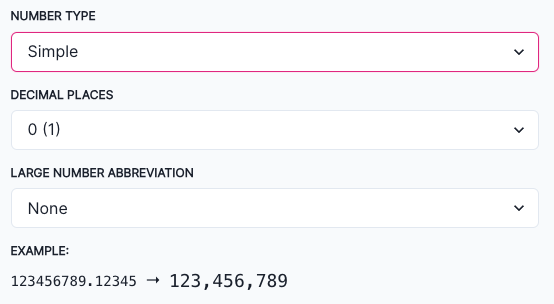
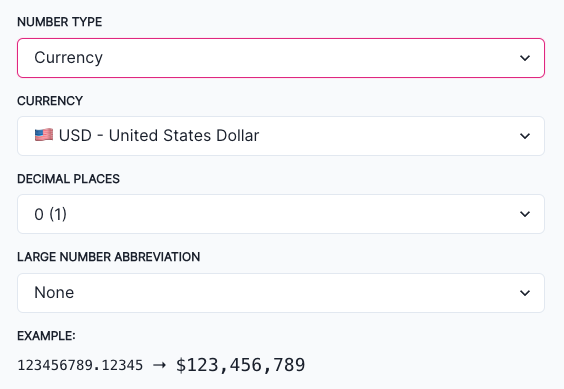
- Text value in valid number format. Number display (comma, fullstop, etc.) is determined by your browser’s locale. Select a Number Type:
- Simple — Define the Decimal Places that the number should be displayed up to and any Large Number Abbreviations.
- Currency — Define the Currency you would like the field to display in, as well as the Decimal Places that the number should be displayed up to and any Large Number Abbreviations.
- Single Line Text
- Simple text value.
- Single Select
- Click Add Option to define a list of options.
- URL
- Text value in valid URL format.
- User
- Select list pre-populated with users from your User Directory.16
- Toggle Allow Linking to Multiple Records on to allow multi-selection of users.
16 Manage users
View, search, and filter inventory fields
In the left sidebar, click Settings.
Under Inventory, select Inventory Record Fields.
Displayed in groups17 as lists are the inventory fields available to records in your organization with a quick view of:18
Narrow down existing inventory fields available to your organization by searching or filtering for results:
19 This count only applies to custom fields.
Click Search to search by keywords within an inventory field.
Select whether to search in the Title or Description.
Click Search to narrow down your results by your entered keywords.
Expand any inventory field group to see more fields.
Click Filter to filter fields by any of the following criteria:
- Required on Creation — Whether or not the field was set up as required during registration.
- Types — What type of field it is.
- Used in Workflows — What workflows are using this field.21
- Workflow Triggered by Field — What workflows are initiated when this field is edited.22
- Write Permissions — Which inventory record stakeholder types have permissions to edit this field.23
Click Apply Filters to narrow down your results by your configured criteria.
Expand any inventory field group to see more fields.
Add or edit inventory fields
In the left sidebar, click Settings.
Under Inventory, select Inventory Record Fields.
Here you can edit existing inventory fields, or add a new one:
To add a new inventory field, click Add Field:
Inventory fields require you to enter a Title (name), select a field Type,24 and indicate what Inventory Record Types25 the field is available on.
Include optional information for your field:
- Enter a custom field Key.26
- Enter a Description to indicate the purpose of the field displayed on the list of fields.
- Enter Help Text to provide guidance to users on how best to fill out that field.
- Check off whether or not the field should be Required on Inventory Record registration.
- Assign a field to a Group.27
- Assign Write Permissions to allow granular access to editing this field gated by inventory record stakeholder types or user roles. Leave this field blank for default permissions where only the Customer Admin role has write access.28
When you are satisfied with the setup of your inventory field, click Save.
26 If left blank, a key will be automatically generated in camelCase format.
27 Ungrouped fields will be listed under No Group: Add inventory field groups
Edit Default Fields
Default Fields are fields created by default by ValidMind.29 To modify a default field:
29 ValidMind default fields:
- Business Unit
- ID
- Is Vendor Model
- Name
- Purpose
- Tier
- Use Case
- Vendor Name
Under the Default Fields grouping, click on the inventory field you want to edit.
Expand any inventory field group to see more fields.30
Toggle the following options on or off:
Click Save Configuration to apply your changes.
Edit custom inventory fields
Custom inventory fields are fields created by your organization. Expand any inventory field group to see more fields.33
To edit an existing custom inventory field:
Click on the custom inventory field you want to edit.
Make your desired changes to your inventory field, then click Save.
Field keys for custom inventory field can be renamed under the Actions column.34
Insert field variables into a Long Text template
Reference other field values from a Long Text template so that every record of that type starts from the same structure — for example, a summary that pulls in a record’s owner and tier alongside your own narrative.
Add or edit a Long Text inventory field, then toggle Enable rich text formatting on.35
In the template editor:
Click { } Insert Variable in the rich text editor toolbar.
Select the variable you want to reference from the Record drop-down menus:
- Core Fields — Default fields on the record.
{Group}— Custom fields, listed under the inventory field group they belong to.36- No Group — Custom fields that aren’t assigned to a group.
- Stakeholders — Assigned users, by record stakeholder type.37
Only fields available on the record type are listed. Artifact fields cannot be referenced,38 and a field can’t reference itself — the field you’re editing is left out of its own drop-down.
Click Save to apply your changes.
Because a template is applied to records of every Inventory Record Type you assign the field to, only variables available on all of those types can be inserted. Assign at least one record type before inserting variables.
Variables resolve when the field is displayed, so a referenced value stays current as the record changes. Inventory exports contain the resolved values rather than the variables.39
Where a value can’t be shown, ValidMind displays a marker in place of the variable so that you can tell restricted or unresolvable content apart from an empty field:
- Access denied
- You don’t have read permissions for that field.40 The value is never sent to your browser.
- Circular reference
- Two or more fields reference each other in a loop.
- Exceeded max depth
- Expansion stopped at two levels. If you reference a Long Text field that itself contains variables, those nested variables resolve one level further — anything beyond that is not expanded.
Rename custom field keys
To rename the field keys for custom inventory fields:
Hover over the Actions column on the far-right for the field whose key you want to rename.
When the menu appears, click on it and select Rename Key.
Enter the New Key and click Check Availability.
If the key is not already in use, you’ll be presented with a list of dependencies to review.
Verify that these dependencies are correct and as expected.
Click Rename Key to apply your changes to the key.
Confirm that the dependencies updated are corrected and as expected.
Add inventory field groups
To group inventory fields, first create an inventory field group:
In the left sidebar, click Settings.
Under Inventory, select Inventory Record Fields.
Click Add Group and enter a Name and an optional Description for the group.
Click Create Group to add the new group.
Assign the desired fields to the group.42
Delete inventory fields
Deleting an inventory field will remove it from all records using that field, even if the field has been populated. A field can only be deleted if it is not actively used by any:
- Active (non-deleted, non-archived) inventory records
- Active (non-archived) workflows
- Calculation fields
- Risk-tier templates
Deleted records and archived workflows no longer block field deletion, even if they contain references to the field.
In the left sidebar, click Settings.
Under Inventory, select Inventory Record Fields.
Hover over the field you would like to delete.
When the menu appears under the Actions column, click on it and select Delete Field.
If the field is a Calculation or Aggregation field, the confirmation notes how many records hold a stored value that will be cleared.
If the field has any active dependencies (workflows or records), a modal will show which active records or workflows are blocking the deletion. Review these dependencies, and then either:
- Resolve the dependency by removing the field from the blocking workflow or records, then retry the deletion.
- Or, if you want to keep these dependencies, cancel the deletion.
If the field has no active dependencies, click Yes, Delete Field to confirm permanent deletion.