Customize ValidMind Document Checker
Manage the regulations and policies and their attached assessments available when you use the ValidMind Document Checker.
Use the ValidMind Document Checker to analyze your completed documents by comparing them against regulatory standards.
The ValidMind Document Checker is a compliance tool that reviews documents against a selected regulatory standard. Use the Document Checker to identify gaps, generate actionable recommendations, and focus your efforts on areas that require attention. The Document Checker uses a structured checklist to:
As a compliance tool, the ValidMind Document Checker is most useful when your documentation or report is sufficiently complete and you are preparing models for regulatory submission or internal audit, as it helps reduce manual review effort and improve quality assurance.
In the left sidebar, click Inventory.
Select a model or find your model by applying a filter or searching for it.4
In the left sidebar that appears for your model, click Documents and select the Latest or Saved Versions tab.5
Click on the file you want to check:6
Locate the Document Checker box on the right and click Check Document.
Locate Check Document on the right and click to expand the menu.
Click Check Document.
Proceed with selecting a regulation to check your document against.
In the Document Checker modal, select a regulation and an associated assessment from the drop-down menus to check your document against:

A list of regulation-based questions appears for your review.
Scroll to the bottom and click Check {document type} Document where {document type} is the type of document you are checking.
The ValidMind Document Checker analyzes your document, identifies gaps, and generates recommendations for specific questions for your review.
Gap Identified — A question that is not addressed and requires attention.
Partial Gap — A question that is partially addressed and requires attention.
No Significant Gaps — A question that is fully addressed.
Review questions that require attention. Each question includes a(n):
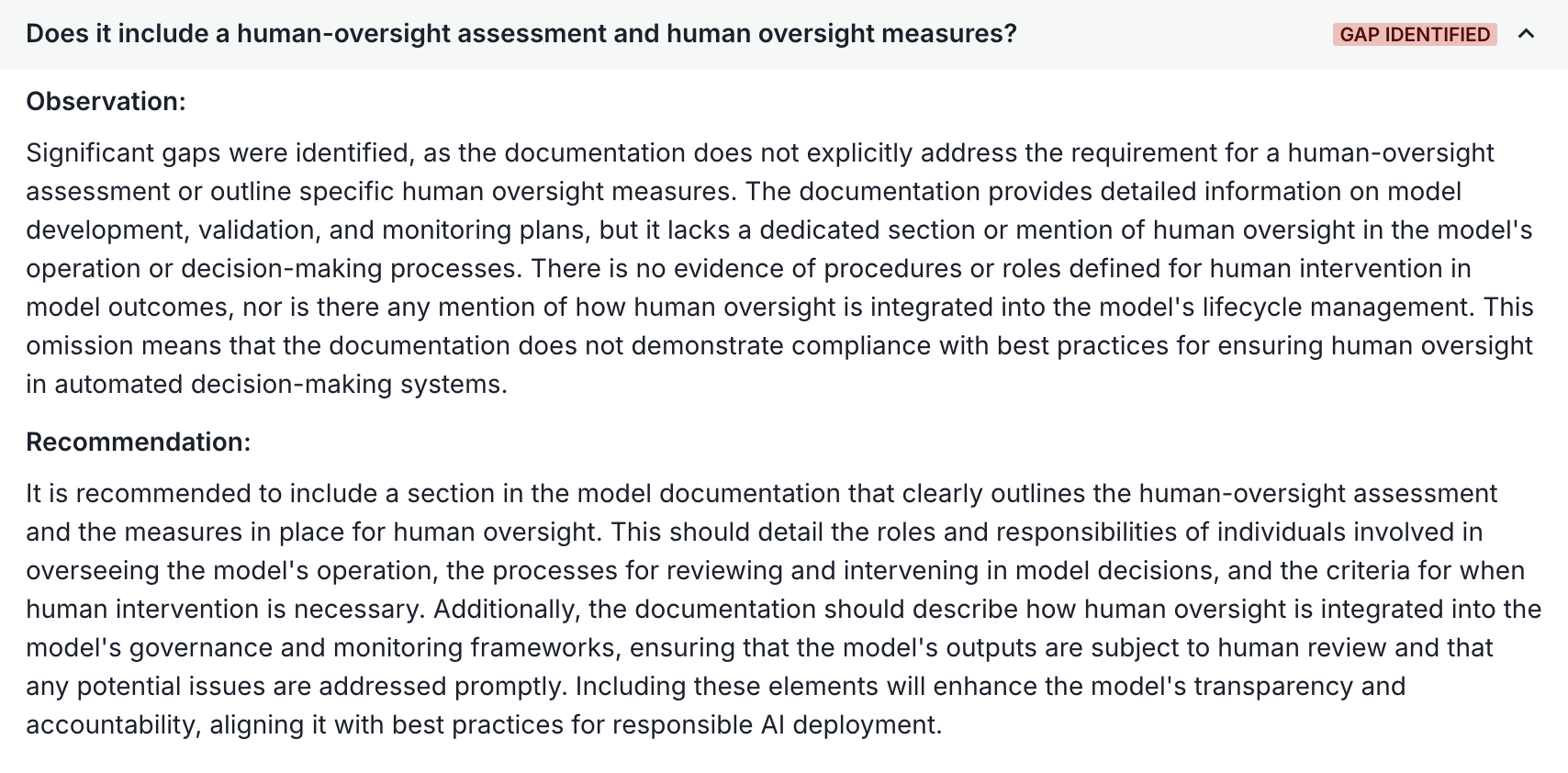
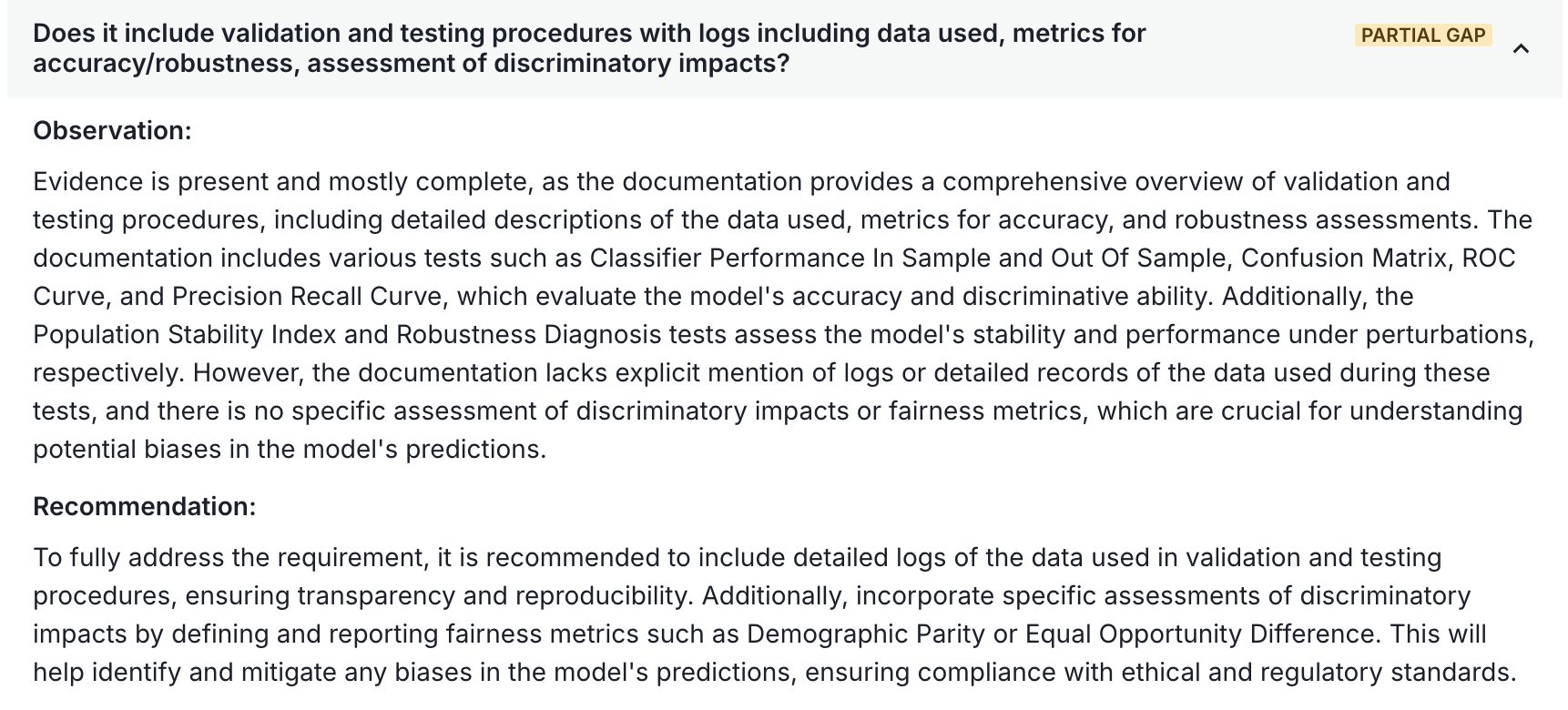
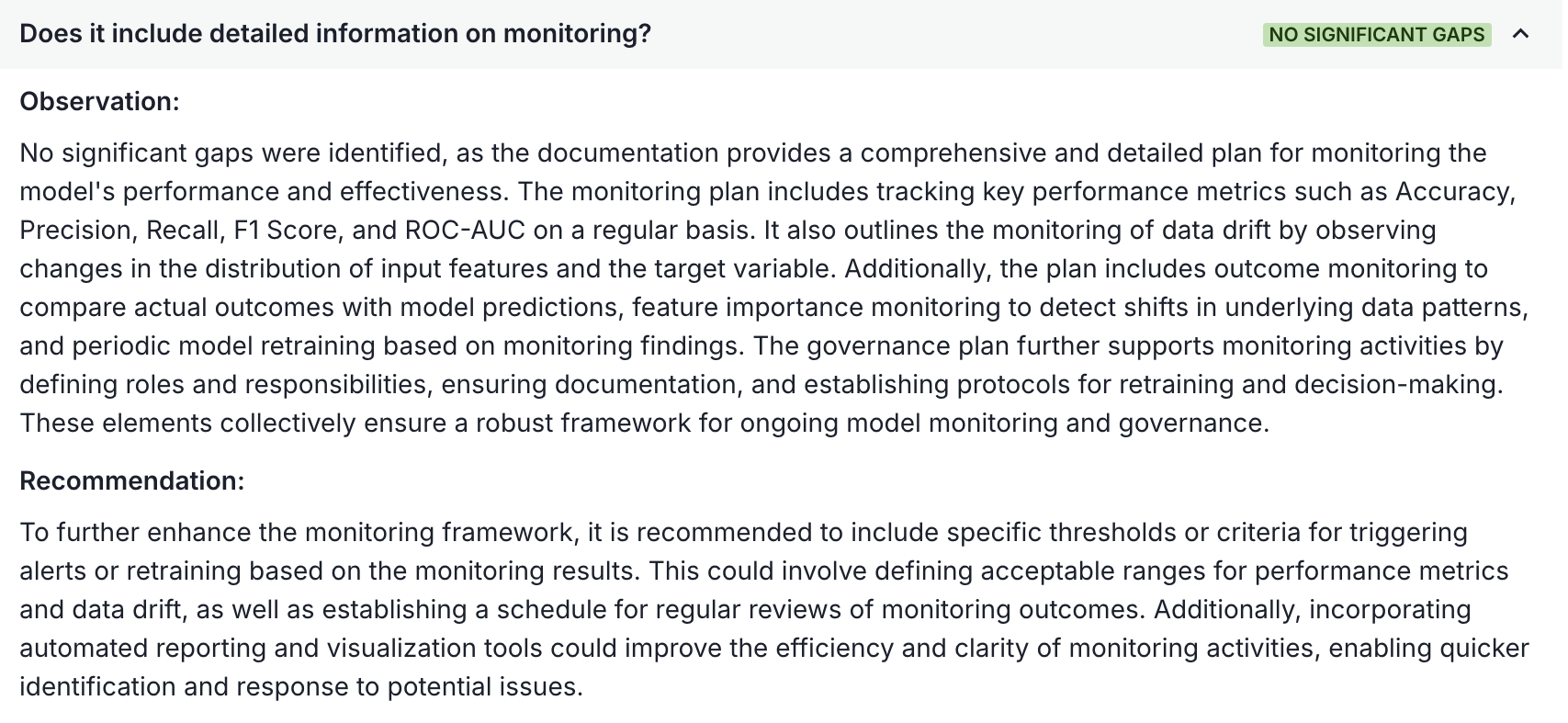
Use the feedback provided by the ValidMind Document Checker to review the appropriate sections of your document and decide what revisions should be made.
To export the results of the Document Checker to a .pdf (Portable Document Format) file for usage outside of the ValidMind Platform, click Export All.