Update artifacts
Update or resolve artifacts as you validate your records, or delete artifacts that no longer need to be tracked.
Prerequisites
Edit fields on artifacts
Locate the artifact you want to edit fields for.4
On the artifact details page:
Select the Overview tab to:
- Click on highlighted fields to make changes.
- Click the Description field text block to make edits.
- validation issues only Click on the Proposed Remediation Plan field text block to make edits.
- validation issues only Click on the Attachments field header to manage files.5
- Click on the Comments field text block to add comments to the artifact.
Select the Artifact Fields tab to click on additional fields to make changes:
- Enter keywords into the Search fields by title bar to narrow down your list of fields to the field you want to edit.
- Click on an attachment field header to manage files for that field.6
Click on the core fields in the right sidebar to make changes.
Click Save to apply your changes to the field.
Manage attachments on artifacts
After an artifact is created, you can upload attachments as supporting documentation:
- Click on the header of your attachment field.
Click Select Files to add a file.
- Add a Note to the file by clicking on the menu, then select Add Note.
- Update a Note by making your changes in the existing text field.
Click Save to submit the upload.
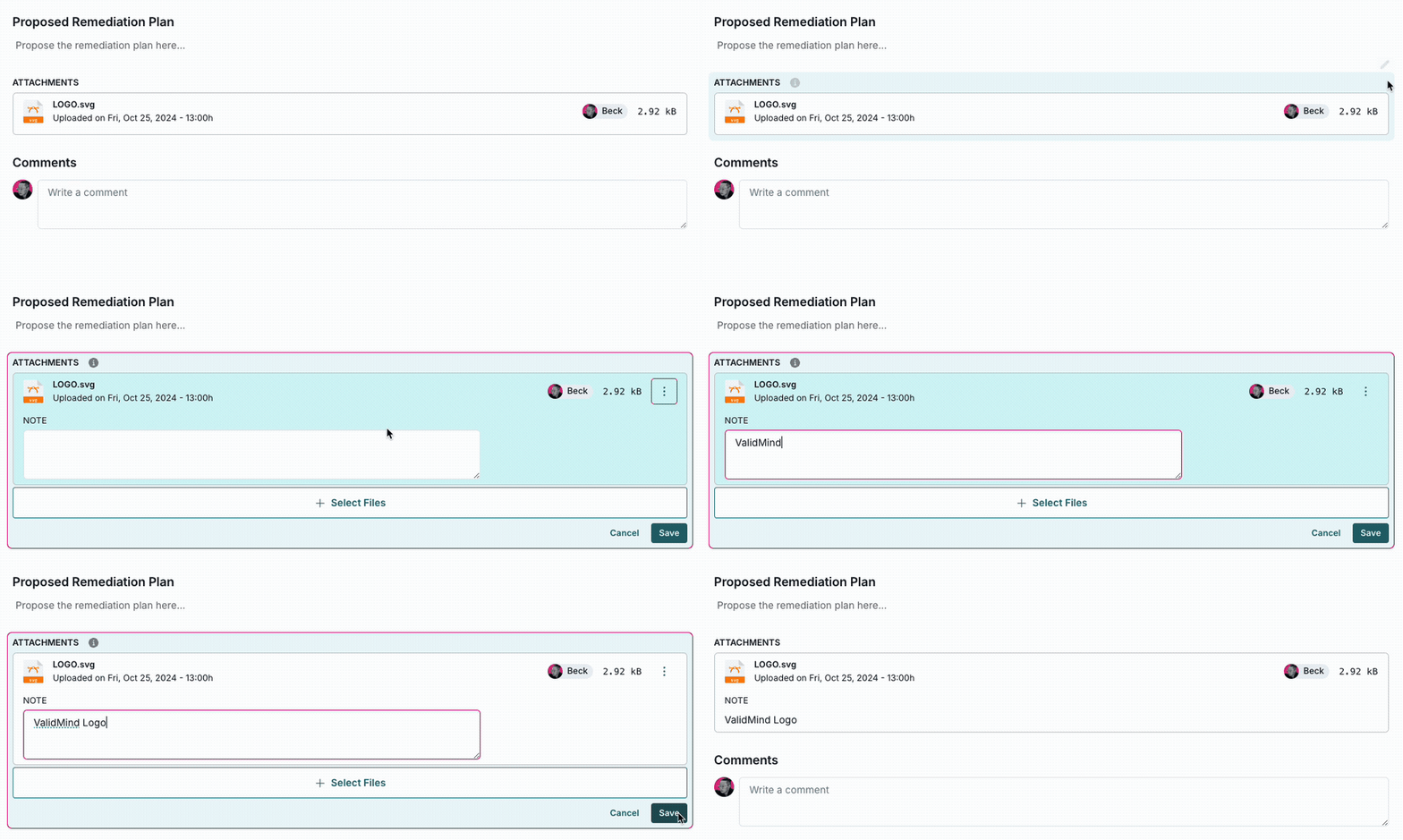
Adding attachment notes
- Click on the header of your attachment field.
Locate the file you want to remove, and click on the menu.
- Select Delete File to remove the file. Click Yes, Delete File to confirm permanent deletion of that file.
- Select Remove Notes to delete any notes. Removal of notes is saved automatically.
Click Save to apply the deletion.
After you save, the attachment or notes will be removed permanently.
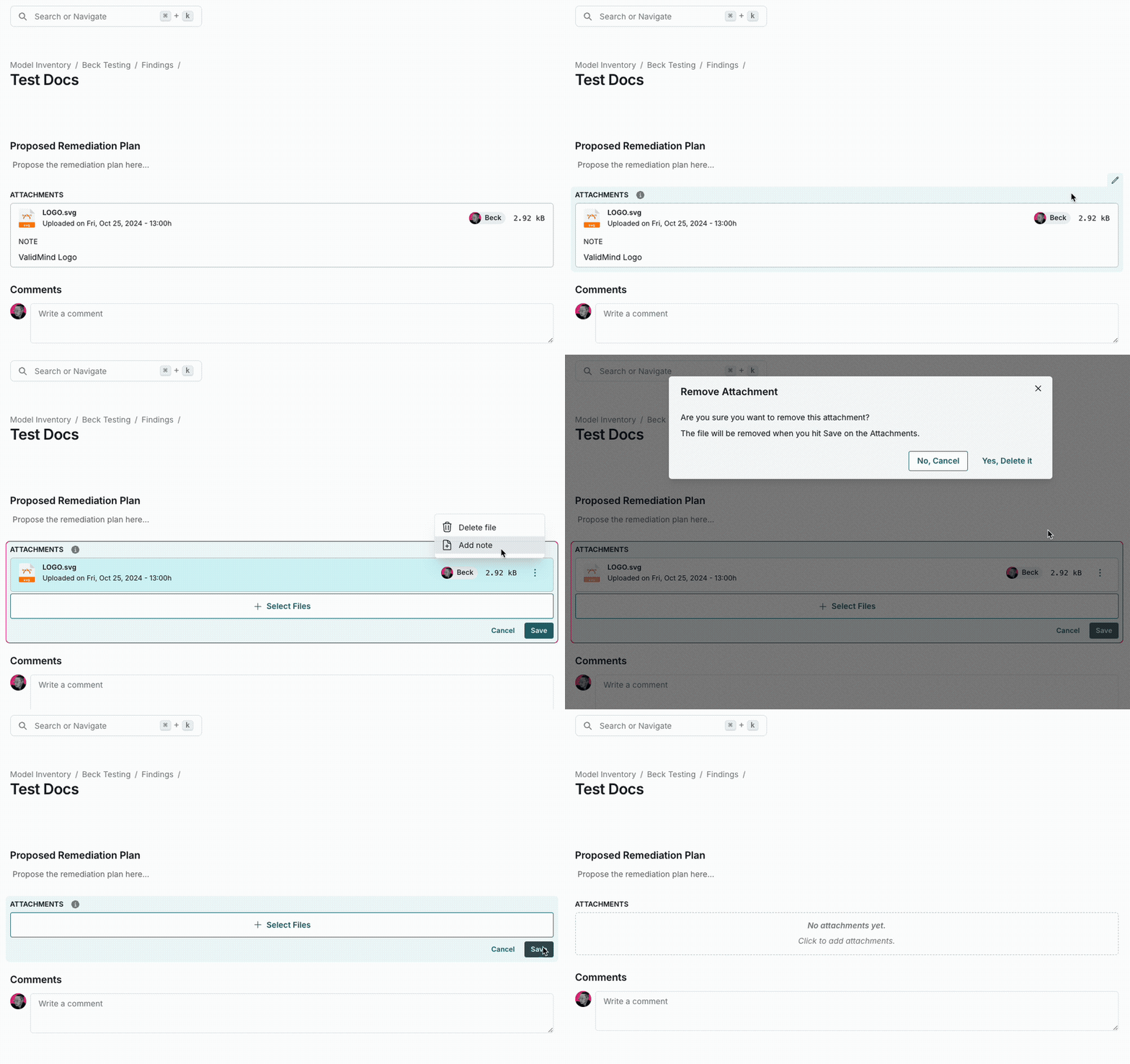
Deleting attachment notes and attachments
View artifact activity
Changes to artifact fields — including core fields such as Severity, Status, Due Date, and stakeholders such as Assignee and Creator — are logged so that you can audit who changed which field, when, and what the values were before and after the change:
Locate the artifact whose activity you want to view.8
On the artifact details page, select the Activity tab.
Click View Details on a field update event to expand the previous and new values for that field.
View individual field activity
To view the change history for a single artifact field:
Locate the artifact whose field history you want to view.10
On the artifact details page, select the Overview or Artifact Fields tab.
Hover over an artifact field, then click to view the change history for that field, including previous and new values.
Track artifact resolution
As you prepare validation reports, review logged artifacts and close any artifacts that have been resolved:
In the left sidebar, click Inventory.
Select a record or find your record by applying a filter or searching for it.11
In the left sidebar that appears for your record, click Validation Issues to view a list of validation issues associated with that record.
Go through the open validation issues one-by-one:
If the validation issue has been addressed —
- Add any final comments to assess how the issue was resolved.12
- Under Status, select
Closed.
If part or all of the validation issue remains to be addressed —
- Assess if the issue identified by the validation issue prevents the record from being approved.
- If a remediation plan is required, enter the details in the Proposed Remediation Plan section of the validation issue.
Track open issues until all validation issues are resolved or a remediation plan is in place for post-approval issues.
In the left sidebar that appears for your record, click Artifacts to view lists of other artifact types associated with that record.
Select an artifact type13 for a list of that artifact type:
- Policy Exception
- Limitation
Go through the open artifacts one-by-one:
If the artifact has been addressed —
- Add any final comments to assess how the issue was resolved.14
- Under Status, select
Closed.
If part or all of the artifact remains to be addressed —
- Assess if the issue identified by the artifact prevents the record from being approved.
- Add comments indicating next required steps.
Track open artifacts until all artifacts are resolved or plans are in place for post-approval issues.
Delete artifacts
If you logged an artifact in error or otherwise no longer need to track that artifact, you can delete it:
Comment on artifacts
Locate the artifact you want comment on.7
On the artifact details page, select the Overview tab.
Click on the Comments field text block.
Enter your comment and click Submit to save the comment.
7 View and filter artifacts